



@jakob001.bsky.social

Act now: Secure Boot certificates expire in June 2026
techcommunity.microsoft.com/blog/windows...
techcommunity.microsoft.com/blog/windows...
techcommunity.microsoft.com
June 26, 2025 at 7:15 PM
Act now: Secure Boot certificates expire in June 2026
techcommunity.microsoft.com/blog/windows...
techcommunity.microsoft.com/blog/windows...
Windows 365 Cloud Apps now in private preview
techcommunity.microsoft.com/blog/windows...
techcommunity.microsoft.com/blog/windows...

Windows 365 Cloud Apps now in private preview - Windows IT Pro Blog
Learn more about Windows 365 Cloud Apps, a new way to securely stream Windows apps to any device.
Cloud PCs provisioned in shared mode for Windows 365 Cloud...
techcommunity.microsoft.com
June 19, 2025 at 3:25 PM
Windows 365 Cloud Apps now in private preview
techcommunity.microsoft.com/blog/windows...
techcommunity.microsoft.com/blog/windows...

Migrating BitLocker Recovery Key Management from #ConfigMgr to #Intune: A Practical Guide
techcommunity.microsoft.com/blog/coreinf...
techcommunity.microsoft.com/blog/coreinf...

Migrating BitLocker Recovery Key Management from ConfigMgr to Intune: A Practical Guide | Microsoft Community Hub
Hi, I'm Herbert Fuchs, a Cloud Solution Architect. In this blog, I’ll guide you through migrating existing BitLocker recovery keys from Configuration Manager...
techcommunity.microsoft.com
May 19, 2025 at 6:08 AM
Migrating BitLocker Recovery Key Management from #ConfigMgr to #Intune: A Practical Guide
techcommunity.microsoft.com/blog/coreinf...
techcommunity.microsoft.com/blog/coreinf...
Announcing new computer use in Microsoft Copilot Studio for UI automation
www.microsoft.com/en-us/micros...
www.microsoft.com/en-us/micros...

Announcing new computer use in Microsoft Copilot Studio for UI automation | Microsoft Copilot Blog
Announcing computer use in Copilot Studio! This new feature allows your Copilot Studio agents to interact directly with websites and desktop applications. Want to join the limited preview? Read on.
www.microsoft.com
April 16, 2025 at 8:48 AM
Announcing new computer use in Microsoft Copilot Studio for UI automation
www.microsoft.com/en-us/micros...
www.microsoft.com/en-us/micros...
Reposted

April update adds an empty C:\Inetpub\

April 9, 2025 at 7:13 AM
April update adds an empty C:\Inetpub\
Reposted

What’s new in Windows Autopatch: April 2025: A key focus of Windows Autopatch is to deliver an easy update management experience for IT administrators. With that in mind, we've simplified the update activation process.
In the past, some features like policy management were enabled… #WindowsITPro
In the past, some features like policy management were enabled… #WindowsITPro

What’s new in Windows Autopatch: April 2025
A key focus of Windows Autopatch is to deliver an easy update management experience for IT administrators. With that in mind, we've simplified the update activation process.
In the past, some features like policy management were enabled by default while others needed to be activated in the Microsoft Intune console. Now, the activation process has been retired, making Windows Autopatch groups, reporting, and other features even easier to use. This change means you can streamline tasks like distributing devices to set up a safe rollout, configuring multiple policies across update types, and reporting on update compliance. With our April 2025 Windows Autopatch release, there are three major improvements to be aware of:
* Windows Autopatch reports now covers all Intune-managed devices, with four-hour client-to-cloud latency.
* Windows Autopatch groups are more flexible and intelligent.
* Windows Autopatch groups and other management features now operate with least-privilege access.
This group of changes is rolling out over the next month significantly improving the security posture of the service, while also making it easier to use for a broader set of people. Here, we'll dig into the details of how each change simplifies your update management experience.
Windows Autopatch reports now covers all Intune-managed devices, with four-hour client-to-cloud latency
What to know
Windows Autopatch reporting has taken a huge step forward in speed and scope. All Intune-managed devices are now covered—not only members of Windows Autopatch groups. Reporting latency has decreased from what used to take more than a day to what now takes four hours or less, bringing you insights faster.
What it means
Windows Autopatch reporting directly focuses on every device's update compliance. To provide the clearest picture possible, Windows Autopatch enables every report to tell a story. To do this, every device must have a status. This means all Intune-managed devices are given one of three states for quality and feature updates. The three states include:
* Up to date: The device is on its targeted version.
* In progress: The device isn't up to date, but, based on policies, it hasn't reached its target compliance date.
* Not up to date: The device isn't up to date and is beyond its target compliance date or has an issue preventing the update.
Historical graphs let you track how your devices have progressed through those states over the last 90 days. If you find any issues, you can click straight through to investigate a group of devices and understand what's going on. When there's a known issue, there's an alert next to the devices that are "Not up to date" providing details around why that device isn't up to date and what to do next.
Screenshot of a quality update report showing 90 days of history.
The other major change coming to Windows Autopatch reporting is a significant decrease in latency. It used to take 12 to 24 hours to see changes in core device information—for example, seeing the build number. Now, it takes less than four hours.
Screenshot of a quality update report showing a list of devices and their statuses.
Bottom line
Windows Autopatch lets you track update compliance for all your devices more quickly than ever.
Windows Autopatch groups are more flexible and intelligent
What to know
There are no more shared policies between Windows Autopatch groups. Individual content types can now be enabled or disabled for a specific Windows Autopatch group, including Microsoft 365 Apps and Edge. New intelligent defaults provide recommendations for the most common device update scenarios.
What this means
Administrators used Windows Autopatch groups to target updates to different departments within an organization, but some update types shared settings between groups, which created a lack of flexibility. To provide the right level of control, policies for each content type are now only assigned to a single Windows Autopatch group.
Previously, Windows Autopatch groups shared a single feature update policy that set the same minimum version among all Windows Autopatch devices. The challenge existed for Microsoft 365 Apps for Enterprise and Edge update policies, leading many admins to disable those content types and administer them separately. Now, these content types can be enabled or disabled for a group, letting admins tailor their approach.
Screenshot showing available content types for a Windows Autopatch group.
Windows Autopatch group registration has also become more flexible. Like before, devices are added to one of the deployment groups during registration, helping to ensure they receive the update policies. However now, additional configuration, like the diagnostic data level or the cloud managed desktop extension, are no longer deployed since the service can operate without them. To facilitate this change, the legacy groups that deployed policies to multiple Windows Autopatch groups are being removed.
While making these changes to Windows Autopatch groups, we used the opportunity to improve other areas, based on your feedback. Two changes to know about include:
* New intelligent defaults provide recommendations for how to configure updates for different types of devices: single user, shared devices, kiosks, or reboot sensitive devices.
* The user experience now highlights shared configuration, for example, how quality update deferrals impact both quality updates and drivers.
Screenshot showing the release schedules section of the Windows Autopatch group wizard.
Bottom line
Windows Autopatch groups let you configure safe deployment practices for updates in your environment. With this release, the groups are more intelligent and more flexible, which sets you up for success.
Windows Autopatch groups and other management features now operate with least-privilege access
What to know
Windows Autopatch now operates with least-privilege access, acting only with the permissions of the person currently signed in. With this change, Windows Autopatch no longer requires a management app with Intune administrator permissions.
What this means
Operating with least-privilege access limits potential damage by helping ensure that people and processes only have the permissions necessary to perform their tasks. To abide by that principle, Windows Autopatch has changed how the service makes changes in the person's environment, acting with the current user's permission instead with full Intune administrator permissions.
This change represents a big step forward in the security of Windows Autopatch. Previously, Windows Autopatch management app had full Intune administrator permissions, meaning that it could change any administrator's policy or group. This level of access was more than was needed to deliver the service, so Windows Autopatch broke our dependency on the management app.
Now, Windows Autopatch has moved to a model where we can't do anything beyond what the currently signed-in user can do. Essentially, we've reconfigured the internal structure of Windows Autopatch to operate using a "least privilege" model, meaning there is no action without direct consent from the organization. When an administrator asks Windows Autopatch to do something, like create a policy or a group, it is with that person's permission set—if they don't have the right permissions, the action will fail.
Another advantage of the new permission model is that Windows Autopatch features no longer need an activation step. Previously, these features were dependent on Intune administrator permissions, which could only be granted by a Global Administrator. This change has made several features more readily available:
* Windows Autopatch groups: Windows Autopatch groups allow you to configure a safe rollout and the device's update behavior. Under the hood, these create policies to configure update settings and populate new Microsoft Entra groups targeting policies based on your choices.
* Windows Autopatch reporting: Windows Autopatch reporting tracks whether a device is up to date, in progress, or not up to date. It shows which devices have trended over time for quality and feature updates. Originally, these reports only included members of Windows Autopatch groups, but they now include all Intune-managed devices.
* Support experience: With support experience, you can create tickets about update issues. These tickets are then routed to the right team based on their support contract.
For people who have given the Windows Autopatch management app Intune administrator permissions, we will be removing those permissions over the coming months to help maximize security.
Bottom line
Windows Autopatch has changed its permission model to operate for the person with the least-privilege access. This allows Windows Autopatch functions like group management and reporting to operate more securely.
Learn more about Windows Autopatch
Find out more about Windows Autopatch and the features coming out in April by visiting our Windows Autopatch Learn pages. Explore the concepts and technology in more detail and find answers to frequently asked questions.
Simplify update management with new Windows Autopatch features
Windows Autopatch has made update management simpler and easier to navigate. Remain nimble, protected, and flexible by taking advantage of these features rolling out over the next month. These features will help you set up a safe rollout, configure multiple policies across update types, and create easier reporting on update compliance.
Learn more about Windows Autopatch update management to take full advantage of the capability.
---
Continue the conversation. Find best practices. Bookmark the Windows Tech Community, then follow us @MSWindowsITPro on X and on LinkedIn. Looking for support? Visit Windows on Microsoft Q&A.
bit.ly
April 9, 2025 at 4:03 PM
What’s new in Windows Autopatch: April 2025: A key focus of Windows Autopatch is to deliver an easy update management experience for IT administrators. With that in mind, we've simplified the update activation process.
In the past, some features like policy management were enabled… #WindowsITPro
In the past, some features like policy management were enabled… #WindowsITPro
Get started with quick machine recovery in Windows
techcommunity.microsoft.com/blog/windows...
techcommunity.microsoft.com/blog/windows...

Get started with quick machine recovery in Windows - Windows IT Pro Blog
Learn how to automate fixes and get users to a productive state faster in the event of a boot issue.
techcommunity.microsoft.com
March 28, 2025 at 5:53 PM
Get started with quick machine recovery in Windows
techcommunity.microsoft.com/blog/windows...
techcommunity.microsoft.com/blog/windows...
Microsoft Intune provides key advantages for macOS management
techcommunity.microsoft.com/blog/microso...
techcommunity.microsoft.com/blog/microso...

Microsoft Intune provides key advantages for macOS management - Microsoft Intune Blog
Microsoft Intune offers IT admins secure, efficient, and cost-effective ways to manage Apple devices.
techcommunity.microsoft.com
March 28, 2025 at 1:05 PM
Microsoft Intune provides key advantages for macOS management
techcommunity.microsoft.com/blog/microso...
techcommunity.microsoft.com/blog/microso...
Introducing the Windows 11 roadmap
techcommunity.microsoft.com/blog/windows...
techcommunity.microsoft.com/blog/windows...

Introducing the Windows roadmap - Windows IT Pro Blog
Welcome to the one-stop shop for upcoming Windows features and improvements.
techcommunity.microsoft.com
March 28, 2025 at 7:38 AM
Introducing the Windows 11 roadmap
techcommunity.microsoft.com/blog/windows...
techcommunity.microsoft.com/blog/windows...
Stay ahead of evolving threats with the latest AI in Intune
techcommunity.microsoft.com/blog/microso...
techcommunity.microsoft.com/blog/microso...

Stay ahead of evolving threats with the latest AI in Intune - Microsoft Intune Blog
Microsoft Intune adds a Vulnerability Remediation Agent to track, assess, and remediate vulnerabilities.
techcommunity.microsoft.com
March 24, 2025 at 6:27 PM
Stay ahead of evolving threats with the latest AI in Intune
techcommunity.microsoft.com/blog/microso...
techcommunity.microsoft.com/blog/microso...
Reposted

💡 Were you aware of all the great Microsoft community tools available for Intune?
Take a look you won't regret it. AND its expanding
👉 IntuneQLinks.net
#MDM #MSIntune #macOS #MVPBuzz #Windows #Android
#Community #PowerShell
Take a look you won't regret it. AND its expanding
👉 IntuneQLinks.net
#MDM #MSIntune #macOS #MVPBuzz #Windows #Android
#Community #PowerShell

March 21, 2025 at 9:04 PM
💡 Were you aware of all the great Microsoft community tools available for Intune?
Take a look you won't regret it. AND its expanding
👉 IntuneQLinks.net
#MDM #MSIntune #macOS #MVPBuzz #Windows #Android
#Community #PowerShell
Take a look you won't regret it. AND its expanding
👉 IntuneQLinks.net
#MDM #MSIntune #macOS #MVPBuzz #Windows #Android
#Community #PowerShell
Reposted

[BLOG] Build your own Windows 365 request approval flow
Allow your end users to request a cloud PC and their manager to approve or deny the request.
#Windows365 #W365 #LogicAppsAviator
inthecloud247.com/build-your-o...
Allow your end users to request a cloud PC and their manager to approve or deny the request.
#Windows365 #W365 #LogicAppsAviator
inthecloud247.com/build-your-o...

Build your own Windows 365 request approval flow | Peter Klapwijk - In The Cloud 24-7
Build your own self service Windows 365 Cloud PC approval automation
inthecloud247.com
March 17, 2025 at 11:20 AM
[BLOG] Build your own Windows 365 request approval flow
Allow your end users to request a cloud PC and their manager to approve or deny the request.
#Windows365 #W365 #LogicAppsAviator
inthecloud247.com/build-your-o...
Allow your end users to request a cloud PC and their manager to approve or deny the request.
#Windows365 #W365 #LogicAppsAviator
inthecloud247.com/build-your-o...
Update rollup for Microsoft Configuration Manager version 2409
learn.microsoft.com/en-us/mem/co...
learn.microsoft.com/en-us/mem/co...

Update rollup for Microsoft Configuration Manager version 2409 - Configuration Manager
Update rollup for Configuration Manager 2409
learn.microsoft.com
March 13, 2025 at 8:58 PM
Update rollup for Microsoft Configuration Manager version 2409
learn.microsoft.com/en-us/mem/co...
learn.microsoft.com/en-us/mem/co...
Reposted

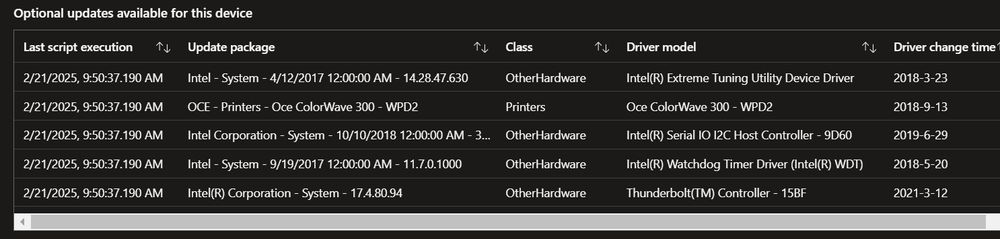
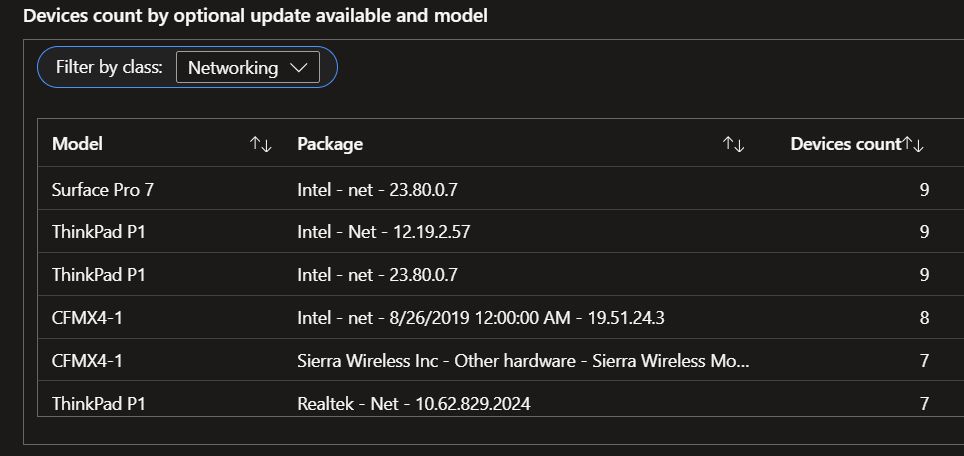
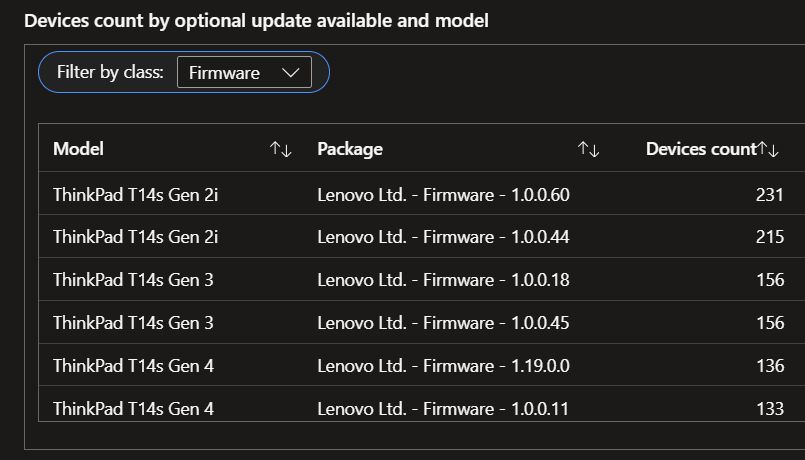
🆕 Drivers inventory dashboard updated with:
✅ Optional drivers updates available for a device
✅ Devices count by optional update & model
✅ Possibility to filter on device class
#MEMPowered #MSIntune @harjit.bsky.social
✅ Optional drivers updates available for a device
✅ Devices count by optional update & model
✅ Possibility to filter on device class
#MEMPowered #MSIntune @harjit.bsky.social
February 24, 2025 at 10:17 AM
🆕 Drivers inventory dashboard updated with:
✅ Optional drivers updates available for a device
✅ Devices count by optional update & model
✅ Possibility to filter on device class
#MEMPowered #MSIntune @harjit.bsky.social
✅ Optional drivers updates available for a device
✅ Devices count by optional update & model
✅ Possibility to filter on device class
#MEMPowered #MSIntune @harjit.bsky.social
Reposted

📰 OIB Windows v3.5 - 24H2 Baseline Edition!
A surprise drop of some settings and an updated 24H2 Intune baseline brings some of those additions (and some extra goodies) to the Windows OIB.
Check out the changelog below!
github.com/SkipToTheEnd...
A surprise drop of some settings and an updated 24H2 Intune baseline brings some of those additions (and some extra goodies) to the Windows OIB.
Check out the changelog below!
github.com/SkipToTheEnd...
Release windows-v3.5 · SkipToTheEndpoint/OpenIntuneBaseline
Windows v3.5 - 2025-02-20 - 24H2 Baseline Edition (Mostly)
Added
Settings Catalog
Win - OIB - SC - Device Security - D - Windows Package Manager - v3.5
Added configuration that will be being adde...
github.com
February 20, 2025 at 11:40 AM
📰 OIB Windows v3.5 - 24H2 Baseline Edition!
A surprise drop of some settings and an updated 24H2 Intune baseline brings some of those additions (and some extra goodies) to the Windows OIB.
Check out the changelog below!
github.com/SkipToTheEnd...
A surprise drop of some settings and an updated 24H2 Intune baseline brings some of those additions (and some extra goodies) to the Windows OIB.
Check out the changelog below!
github.com/SkipToTheEnd...
Storm-2372 conducts device code phishing campaign
www.microsoft.com/en-us/securi...
www.microsoft.com/en-us/securi...

Storm-2372 conducts device code phishing campaign | Microsoft Security Blog
Microsoft Threat Intelligence Center discovered an active and successful device code phishing campaign by a threat actor we track as Storm-2372. Our ongoing investigation indicates that this campaign ...
www.microsoft.com
February 16, 2025 at 11:28 AM
Storm-2372 conducts device code phishing campaign
www.microsoft.com/en-us/securi...
www.microsoft.com/en-us/securi...
Reposted

Check out Windows at Microsoft Technical Takeoff 2025, coming up March 3-6. Please share and spread the word.
aka.ms/WindowsAtTec...
#Windows #ITpros #TechTakeoff #Microsoft #MSIntune #Windows365 #Copilot
aka.ms/WindowsAtTec...
#Windows #ITpros #TechTakeoff #Microsoft #MSIntune #Windows365 #Copilot
Windows at Microsoft Technical Takeoff 2025 - Windows IT Pro Blog
Quickly find technical deep dives and demos to add to your calendar. Get the guidance and skills you need to deploy, manage, and support the latest features!
aka.ms
February 13, 2025 at 10:47 PM
Check out Windows at Microsoft Technical Takeoff 2025, coming up March 3-6. Please share and spread the word.
aka.ms/WindowsAtTec...
#Windows #ITpros #TechTakeoff #Microsoft #MSIntune #Windows365 #Copilot
aka.ms/WindowsAtTec...
#Windows #ITpros #TechTakeoff #Microsoft #MSIntune #Windows365 #Copilot
Join us for the third installment of the Microsoft Technical Takeoff for Windows and Microsoft Intune! techcommunity.microsoft.com/event/techco...

Microsoft Technical Takeoff | Microsoft Community Hub
Join us for the third installment of the Microsoft Technical Takeoff for Windows and Microsoft Intune! This free, virtual skilling event offers prescriptive,...
techcommunity.microsoft.com
February 14, 2025 at 5:46 PM
Join us for the third installment of the Microsoft Technical Takeoff for Windows and Microsoft Intune! techcommunity.microsoft.com/event/techco...
Reposted
If you are having issues with authenticating via certs, like WLAN etc using 802.1x, remember that this is now enforced on your DC, after installing the patches from Tuesday:
directaccess.richardhicks.com/2025/01/27/s...
directaccess.richardhicks.com/2025/01/27/s...

Strong Certificate Mapping Enforcement February 2025
Are you ready? In just a few short weeks(!) Microsoft will release the February 2025 security updates. This is a critical update because Microsoft plans to enable full enforcement of strong certifi…
directaccess.richardhicks.com
February 13, 2025 at 12:23 PM
If you are having issues with authenticating via certs, like WLAN etc using 802.1x, remember that this is now enforced on your DC, after installing the patches from Tuesday:
directaccess.richardhicks.com/2025/01/27/s...
directaccess.richardhicks.com/2025/01/27/s...
Reposted
Next flow for the user onboarding automation series.
#LogicAppsAviator #Automation #EntraID #security
#LogicAppsAviator #Automation #EntraID #security

February 13, 2025 at 4:16 PM
Next flow for the user onboarding automation series.
#LogicAppsAviator #Automation #EntraID #security
#LogicAppsAviator #Automation #EntraID #security
The Microsoft Error Lookup Tool
learn.microsoft.com/en-us/window...
learn.microsoft.com/en-us/window...
The Microsoft Error Lookup Tool - Win32 apps
Describes how to use the Microsoft Error Lookup Tool to find text explanations of hexadecimal error codes in Windows.
learn.microsoft.com
February 3, 2025 at 7:46 PM
The Microsoft Error Lookup Tool
learn.microsoft.com/en-us/window...
learn.microsoft.com/en-us/window...
Reposted

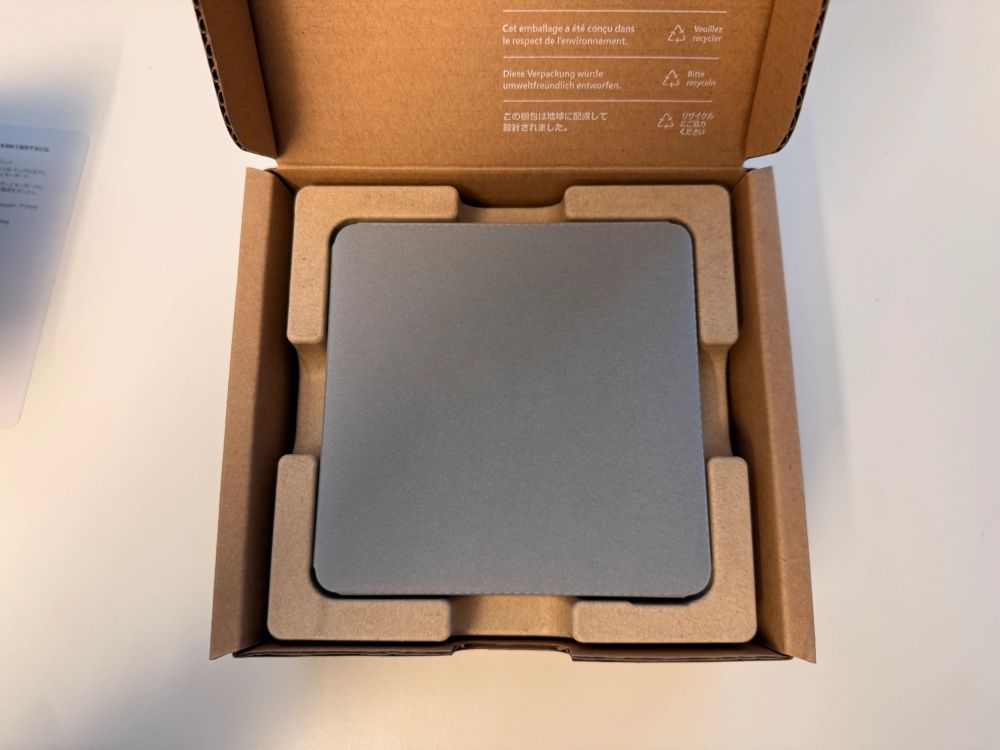
Must read. Unboxing #Windows365 Link for the first time. Experience our own first #hardware device that lets users Boot directly your Cloud PC. Our release is coming up rapidly. Our amazing MVP Roman Kleyn from Germany got you covered via his blog ⤵️ stoked4workplace.com/2025/01/20/u...
January 31, 2025 at 3:28 PM
Must read. Unboxing #Windows365 Link for the first time. Experience our own first #hardware device that lets users Boot directly your Cloud PC. Our release is coming up rapidly. Our amazing MVP Roman Kleyn from Germany got you covered via his blog ⤵️ stoked4workplace.com/2025/01/20/u...