




Carlos Guerra
@cguerra.bsky.social
Tech Advisor on digital security and circumvention | Venezuelan
- This example covers image file formats, so other file formats will have other nuances. For instance, the "Convert Image" approach on macOS won't work for a PDF document.
- The image itself might contain personal information that is not related to the metadata (photos, specific signs, etc.)
- The image itself might contain personal information that is not related to the metadata (photos, specific signs, etc.)
June 29, 2025 at 3:25 PM
- This example covers image file formats, so other file formats will have other nuances. For instance, the "Convert Image" approach on macOS won't work for a PDF document.
- The image itself might contain personal information that is not related to the metadata (photos, specific signs, etc.)
- The image itself might contain personal information that is not related to the metadata (photos, specific signs, etc.)
Please keep in mind that:
- There are many edge cases, but if you create the images, it should be ok with the information on this thread.
- In Windows/Linux, removing metadata reliably might require extra tools if you want a Graphical User Interface (GUI)
- There are many edge cases, but if you create the images, it should be ok with the information on this thread.
- In Windows/Linux, removing metadata reliably might require extra tools if you want a Graphical User Interface (GUI)
June 29, 2025 at 3:25 PM
Please keep in mind that:
- There are many edge cases, but if you create the images, it should be ok with the information on this thread.
- In Windows/Linux, removing metadata reliably might require extra tools if you want a Graphical User Interface (GUI)
- There are many edge cases, but if you create the images, it should be ok with the information on this thread.
- In Windows/Linux, removing metadata reliably might require extra tools if you want a Graphical User Interface (GUI)
However, if using exiftool is difficult (or just annoying), there are other ways. For instance, in macOS, you can right-click the file, go to "Quick Actions", and select "Convert Image" to create a new version of the file; just uncheck the option "Preserve Metadata" and you should be good to go :)


June 29, 2025 at 3:25 PM
However, if using exiftool is difficult (or just annoying), there are other ways. For instance, in macOS, you can right-click the file, go to "Quick Actions", and select "Convert Image" to create a new version of the file; just uncheck the option "Preserve Metadata" and you should be good to go :)
Ok, so back to the original file: if you are comfortable enough to run tools on the command line, exiftool, the one we used to check the existing metadata, can also remove it in a new version of the image. In this case by running "exiftool -all= not_made_by_me.png"


June 29, 2025 at 3:25 PM
Ok, so back to the original file: if you are comfortable enough to run tools on the command line, exiftool, the one we used to check the existing metadata, can also remove it in a new version of the image. In this case by running "exiftool -all= not_made_by_me.png"
PAUSE! Before we get too stressed, let's say something actually good and helpful: if we send the picture over Signal or WhatsApp, this data will be deleted (mostly because the platform creates its own version of the picture, hopefully optimized). This example is for the same image on Signal

June 29, 2025 at 3:25 PM
PAUSE! Before we get too stressed, let's say something actually good and helpful: if we send the picture over Signal or WhatsApp, this data will be deleted (mostly because the platform creates its own version of the picture, hopefully optimized). This example is for the same image on Signal
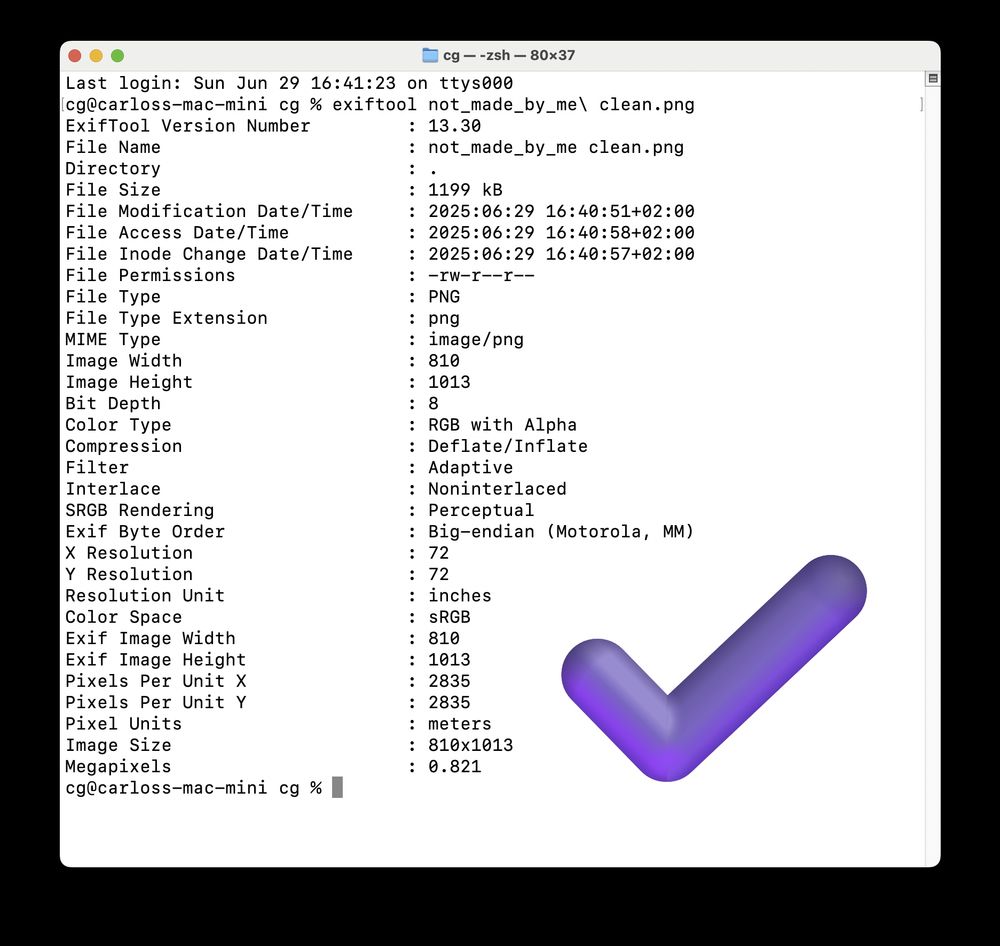
Now, if we use a tool for extracting the metadata in a more professional way (exiftool for the curious), we get this on the file (spoiler: 😐 You can see my name, that I used Canva to create the image with documents and user id, and some other weird fields that I couldn't find much about 🤔)

June 29, 2025 at 3:25 PM
Now, if we use a tool for extracting the metadata in a more professional way (exiftool for the curious), we get this on the file (spoiler: 😐 You can see my name, that I used Canva to create the image with documents and user id, and some other weird fields that I couldn't find much about 🤔)
Let's take this image above (not_made_by_me.png), usual guidance says to right-click and then select Properties/Get Info to check the available metadata. Here is what it looks like for Windows, Mac, and Linux (Ubuntu in this case):


June 29, 2025 at 3:25 PM
Let's take this image above (not_made_by_me.png), usual guidance says to right-click and then select Properties/Get Info to check the available metadata. Here is what it looks like for Windows, Mac, and Linux (Ubuntu in this case):
- This example covers image file formats, so other file formats will have other nuances. For instance, the "Convert Image" approach on macOS won't work for a PDF document.
- The image itself might contain personal information that is not related to the metadata (photos, specific signs, etc.)
- The image itself might contain personal information that is not related to the metadata (photos, specific signs, etc.)
June 29, 2025 at 3:11 PM
- This example covers image file formats, so other file formats will have other nuances. For instance, the "Convert Image" approach on macOS won't work for a PDF document.
- The image itself might contain personal information that is not related to the metadata (photos, specific signs, etc.)
- The image itself might contain personal information that is not related to the metadata (photos, specific signs, etc.)
Please keep in mind that:
- There are many edge cases, but if you create the images, it should be ok with the information on this thread.
- In Windows/Linux, removing metadata reliably might require extra tools if you want a Graphical User Interface (GUI)
- There are many edge cases, but if you create the images, it should be ok with the information on this thread.
- In Windows/Linux, removing metadata reliably might require extra tools if you want a Graphical User Interface (GUI)
June 29, 2025 at 3:11 PM
Please keep in mind that:
- There are many edge cases, but if you create the images, it should be ok with the information on this thread.
- In Windows/Linux, removing metadata reliably might require extra tools if you want a Graphical User Interface (GUI)
- There are many edge cases, but if you create the images, it should be ok with the information on this thread.
- In Windows/Linux, removing metadata reliably might require extra tools if you want a Graphical User Interface (GUI)
However, if using exiftool is difficult (or just annoying), there are other ways. For instance, in macOS, you can right-click the file, go to "Quick Actions", and select "Convert Image" to create a new version of the file; just uncheck the option "Preserve Metadata" and you should be good to go :)
June 29, 2025 at 3:11 PM
However, if using exiftool is difficult (or just annoying), there are other ways. For instance, in macOS, you can right-click the file, go to "Quick Actions", and select "Convert Image" to create a new version of the file; just uncheck the option "Preserve Metadata" and you should be good to go :)
Ok, so back to the original file: if you are comfortable enough to run tools on the command line, exiftool, the one we used to check the existing metadata, can also remove it in a new version of the image. In this case by running "exiftool -all= not_made_by_me.png"
June 29, 2025 at 3:11 PM
Ok, so back to the original file: if you are comfortable enough to run tools on the command line, exiftool, the one we used to check the existing metadata, can also remove it in a new version of the image. In this case by running "exiftool -all= not_made_by_me.png"
PAUSE! Before we get too stressed, let's say something actually good and helpful: if we send the picture over Signal or WhatsApp, this data will be deleted (mostly because the platform creates its own version of the picture, hopefully optimized). This example is for the same image on Signal
June 29, 2025 at 3:11 PM
PAUSE! Before we get too stressed, let's say something actually good and helpful: if we send the picture over Signal or WhatsApp, this data will be deleted (mostly because the platform creates its own version of the picture, hopefully optimized). This example is for the same image on Signal
Now, if we use a tool for extracting the metadata in a more professional way (exiftool for the curious), we get this on the file (spoiler: 😐 You can see my name, that I used Canva to create the image with documents and user id, and some other weird fields that I couldn't find much about 🤔)
June 29, 2025 at 3:11 PM
Now, if we use a tool for extracting the metadata in a more professional way (exiftool for the curious), we get this on the file (spoiler: 😐 You can see my name, that I used Canva to create the image with documents and user id, and some other weird fields that I couldn't find much about 🤔)
Let's take this image above (not_made_by_me.png), usual guidance says to right-click and then select Properties/Get Info to check the available metadata. Here how it looks like for Windows, Mac, and Linux (Ubuntu in this case):
June 29, 2025 at 3:11 PM
Let's take this image above (not_made_by_me.png), usual guidance says to right-click and then select Properties/Get Info to check the available metadata. Here how it looks like for Windows, Mac, and Linux (Ubuntu in this case):
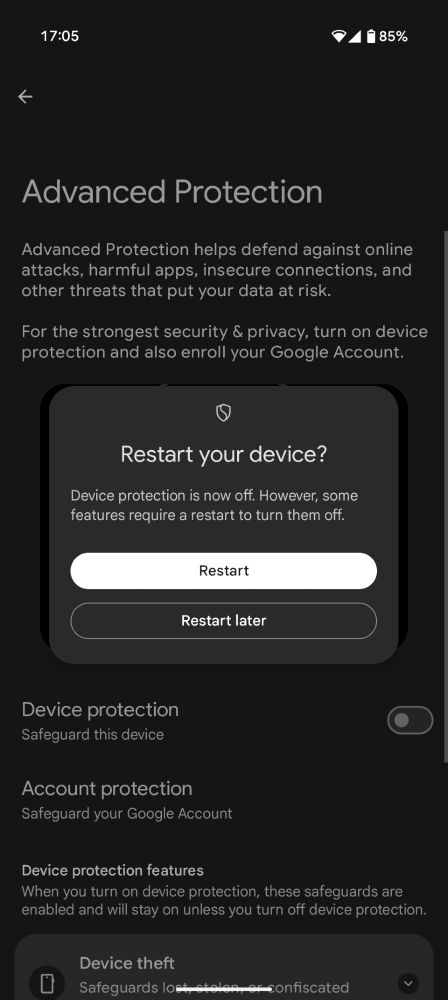
That said, when you try to disable any of these things, it offers you to disable the Advanced Protection mode altogether and it is not hard: biometrics and a restart that can be done later if you want. So it is promising for sure, but as it is implemented not bulletproof for physical access cases.
June 16, 2025 at 3:15 PM
That said, when you try to disable any of these things, it offers you to disable the Advanced Protection mode altogether and it is not hard: biometrics and a restart that can be done later if you want. So it is promising for sure, but as it is implemented not bulletproof for physical access cases.
IIRC they work but with currents that are below specification, so they do the job but can break easier or they need to be put in gentler settings (not too cold) for them to work
June 1, 2025 at 12:11 AM
IIRC they work but with currents that are below specification, so they do the job but can break easier or they need to be put in gentler settings (not too cold) for them to work